Introduction
When you first access the Halo platform you will be asked to provide and confirm information about your dealership for the event. The information provided will be used on guest invitations and to set up your workforce.
Halo will auto save your information frequently. When you are happy with what you’ve submitted for each page click the Lock button at the bottom.
Landing Page
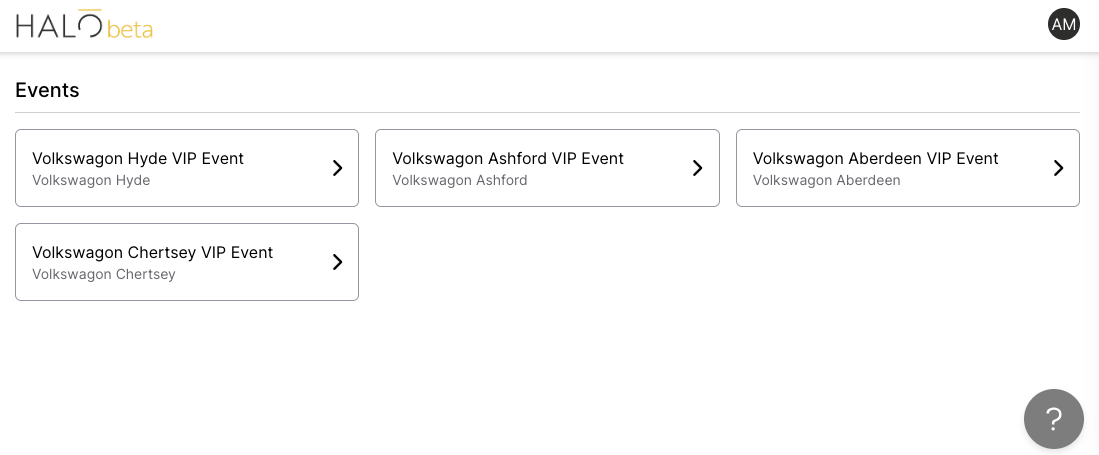
After logging in, if you only have 1 event then you will be taken to that specific event. If you have several events upcoming, you can select the event here.
Event
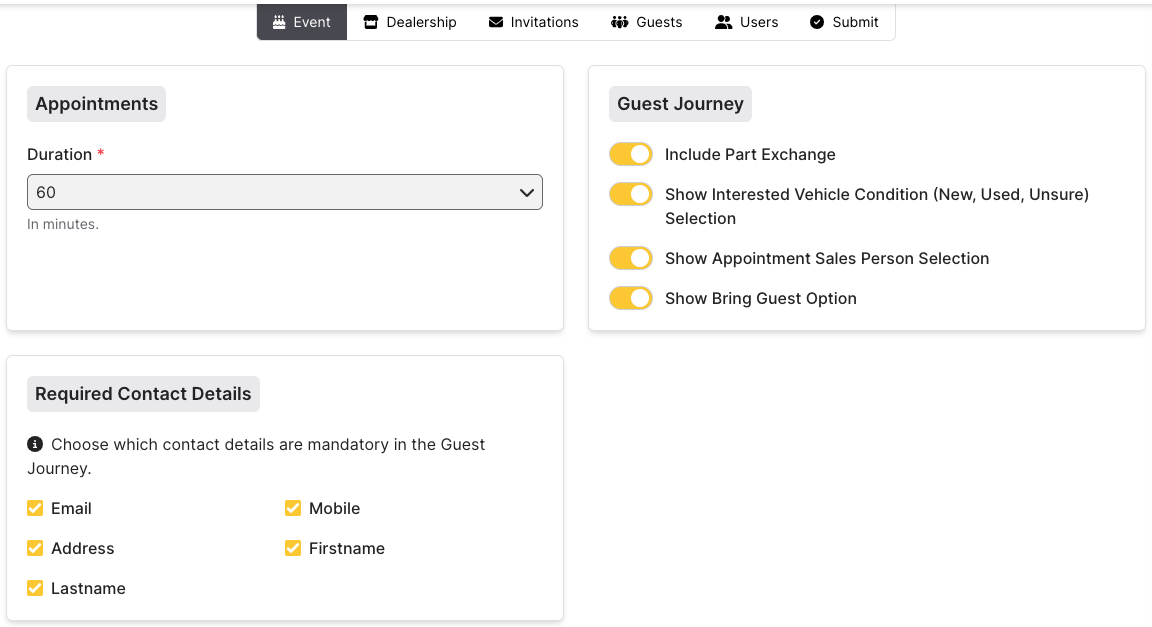
Here you can confirm specific information about the event.
- The duration confirms the standard appointment duration for each customer, and can be set to 30, 60, 90 or 120 minutes.
- Guest Journey refers to the booking journey that’s completed by your guests. The same information is collected if the customer begins the journey via a link, or if a sales executive or call handler books it themselves.
- Part exchange is for when a guest would like to exchange their car as part of buying a new one.
- Show interested Vehicle condition lets a customer specify if they want a new or used car, of if they are unsure.
- Show appointment salesperson allows the guest to select a specific salesperson for their appointment. If this is selected, the guest can still choose that they have no preference.
- Show Bring Guest option allows the user to enter details for a guest to bring with them to the event.
- Required Contact Details lets you choose which information is required by the guest. If you untick any of these boxes, a customer can still choose to enter this information although it won’t be enforced.
Dealership
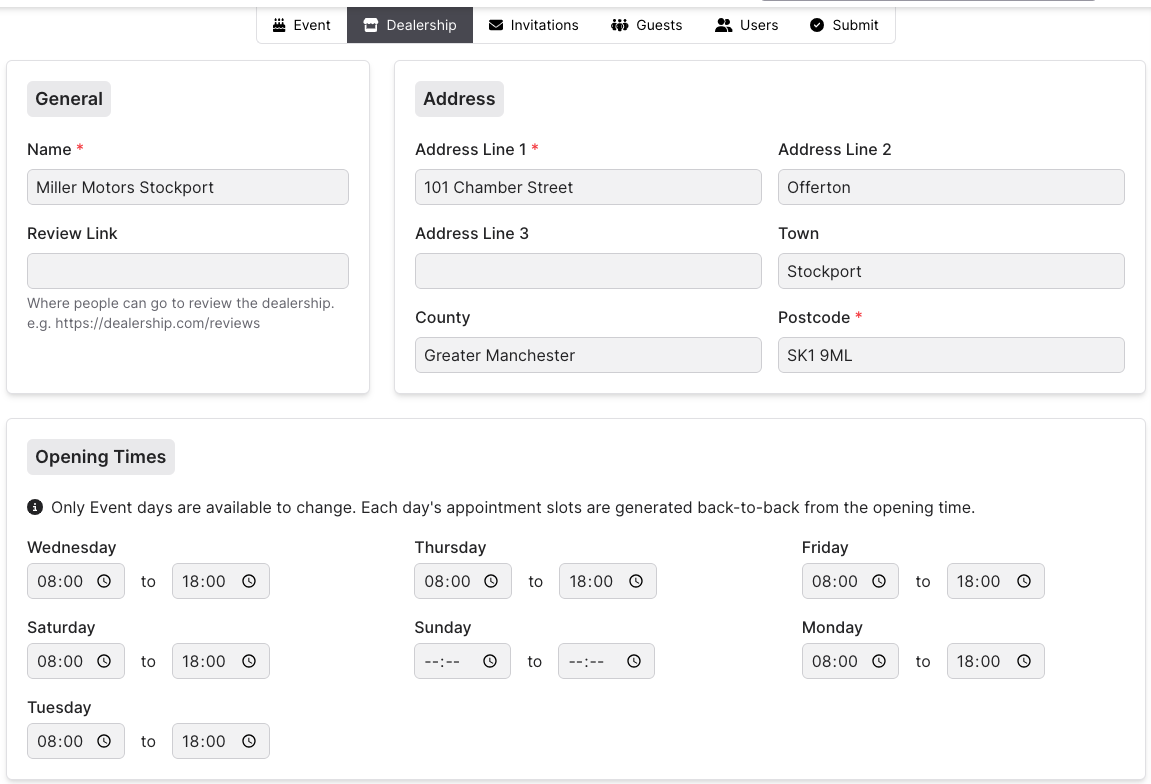
Here you can confirm and edit details on your Dealership’s name, review link, address and opening times.
Invitations
This section covers information that will appear on the guest invitations.

The ability to unsubscribe is a legal requirement as per GDPR. This information is used exclusively to give your guests a means to unsubscribe.

The Call Handler is the main person or people customer speak to when booking an appointment over the phone.
This does not have to be a single person, for example you could enter “Sales Team” and give the shared email and number of your Sales Team instead.

This will be the main web address and contact number of your dealership.
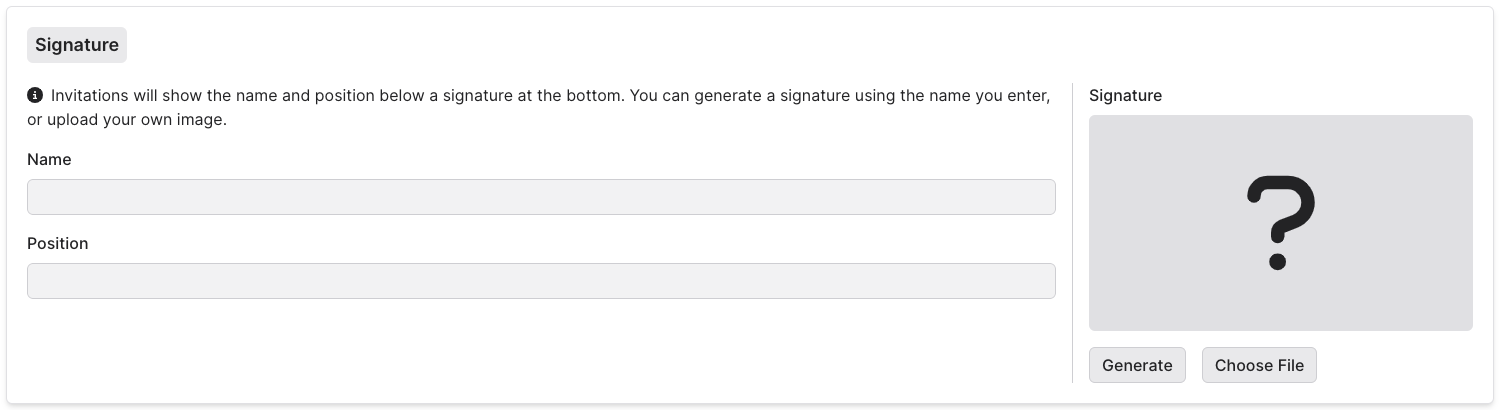
This section generates your signature for the bottom of guest invitation letters. You can upload an image of your main signature, or Halo can generate a signature using your name.
Guests
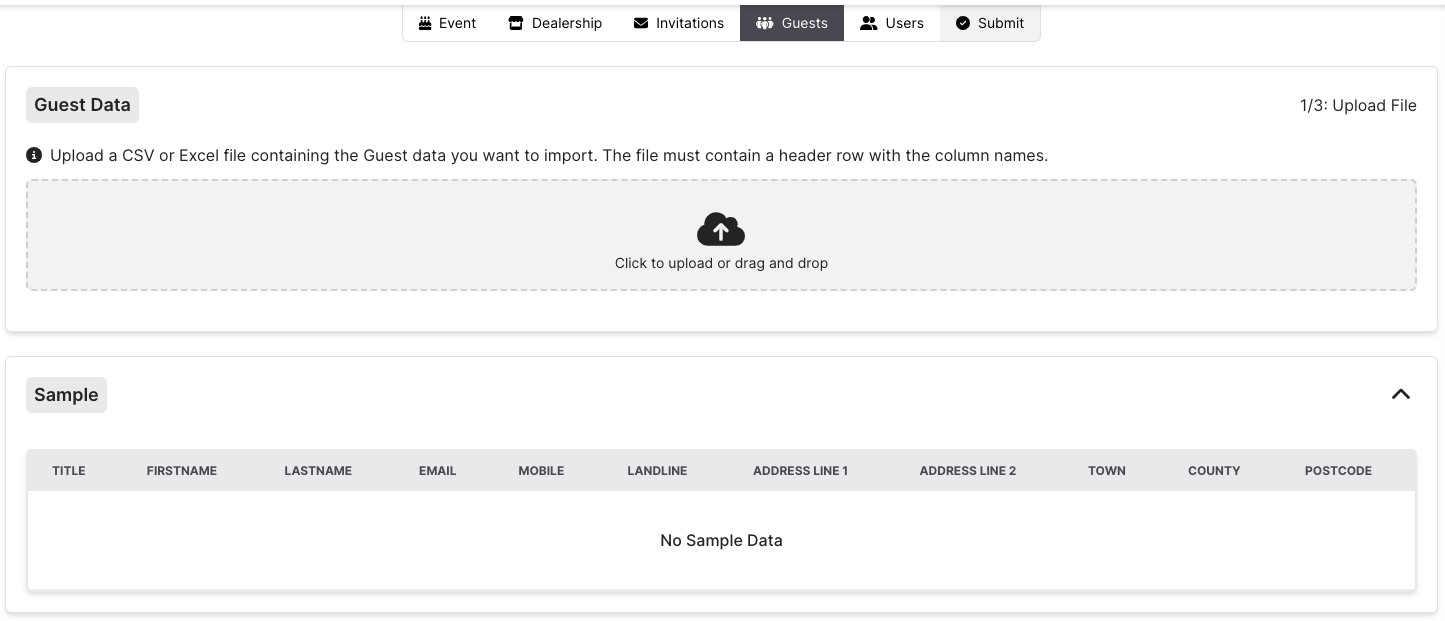
Here you can upload data for your guests. This will be used to send the invitations out for the event. The data you upload must be a spreadsheet in a CSV or XLSX data format. The first row of the spreadsheet must contain the name of each column. The names don’t need to exactly match the Halo sample, as you can map each column after uploading the file.
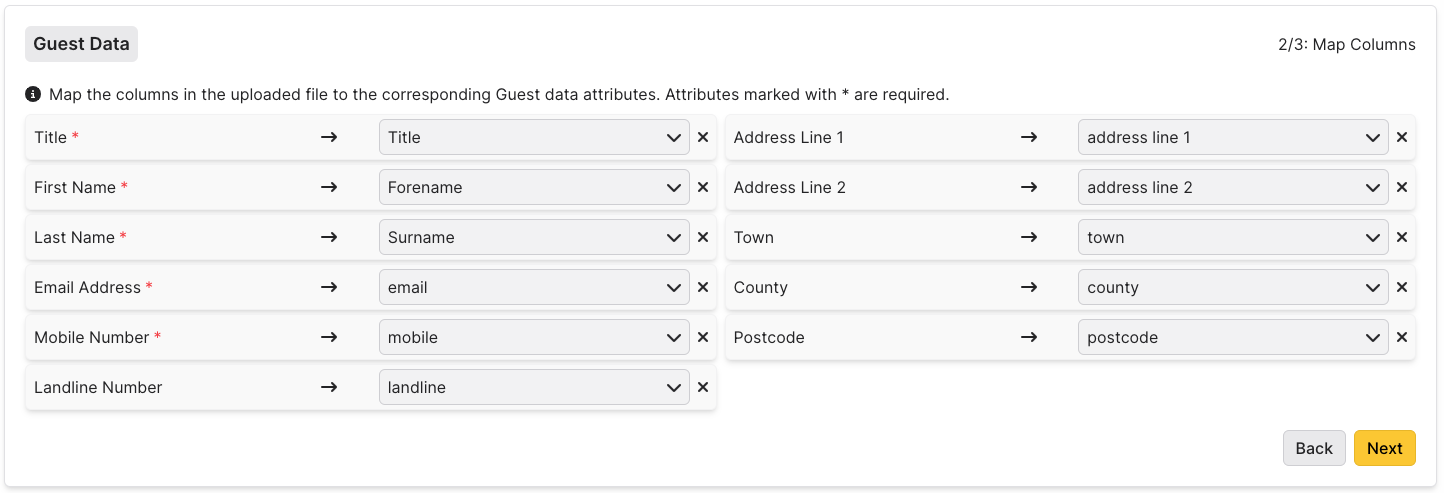
After uploading the data, you will need to map the columns so that Halo can understand them. This means it does not matter if your guest data isn’t in the same order as Halo expects – you can amend this as part of the upload process.
You can also choose to upload additional columns other than the ones Halo shows you. These get stored as Additional Data. This can be used for a variety of reasons depending on the needs of your dealership.
Users
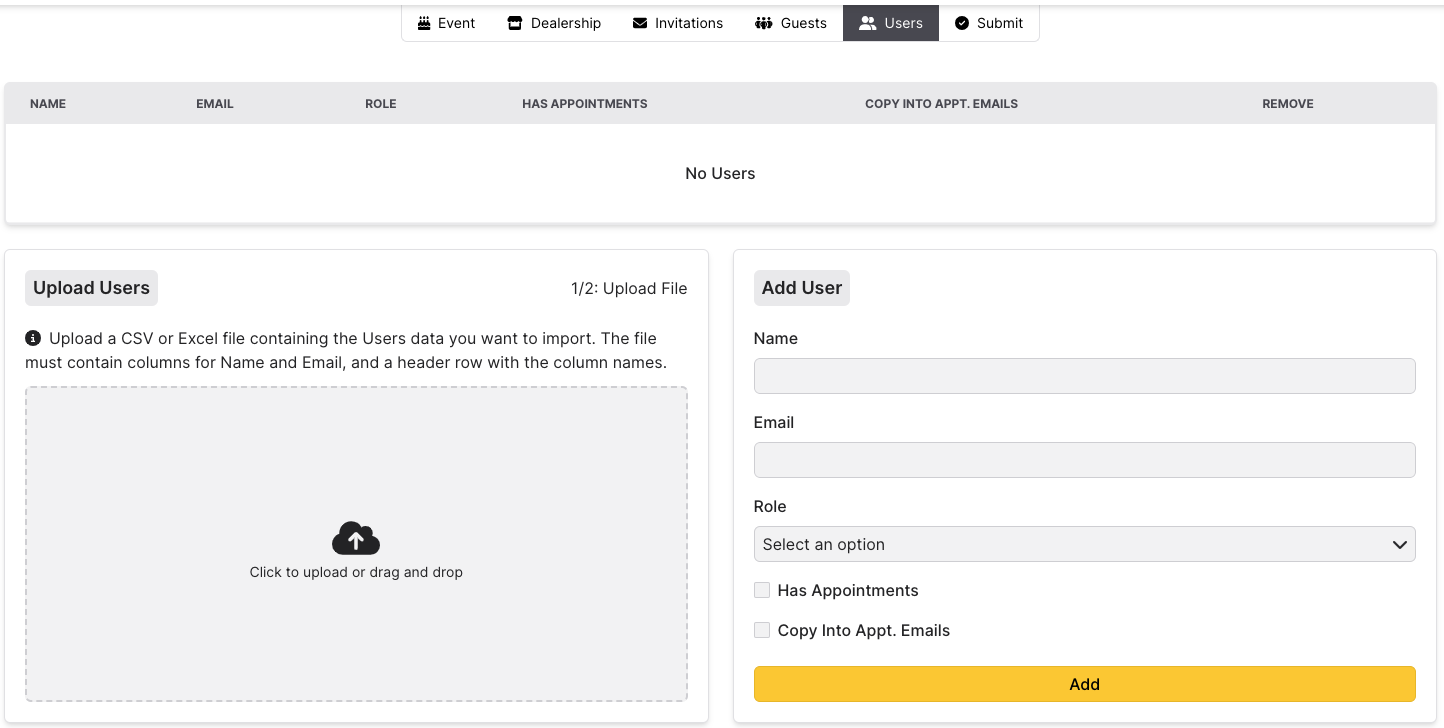
This is where you add your dealership users, or others that would need to access the event on Halo.
You can add each user manually or add them as part of a CSV or XLSX spreadsheet. If you choose to upload a file, the only columns you need are Name and Email. You can choose the role, if they have appointments and if they should be copied into all appointment emails on the next page.
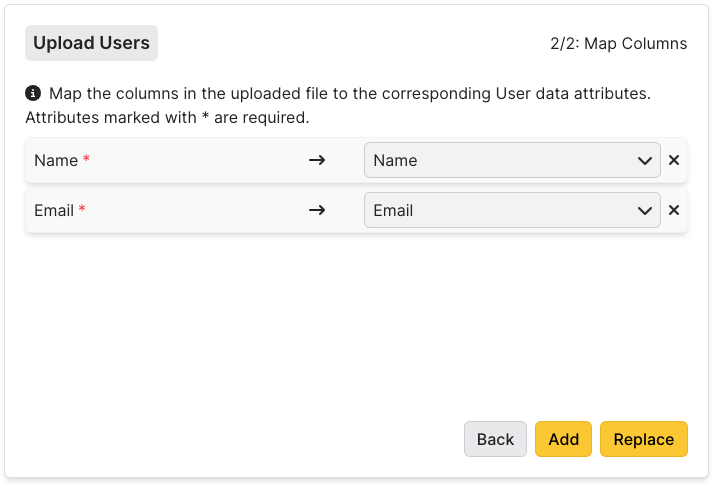
Just like with Guest Data, you map the columns after uploading the file.
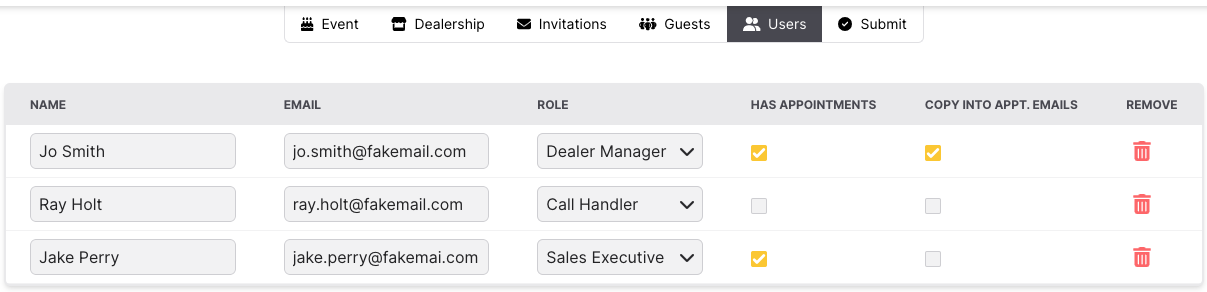
After the upload is complete, you can change the role, if they can have appointments, and if they should be copied into all appointment emails.
Submit
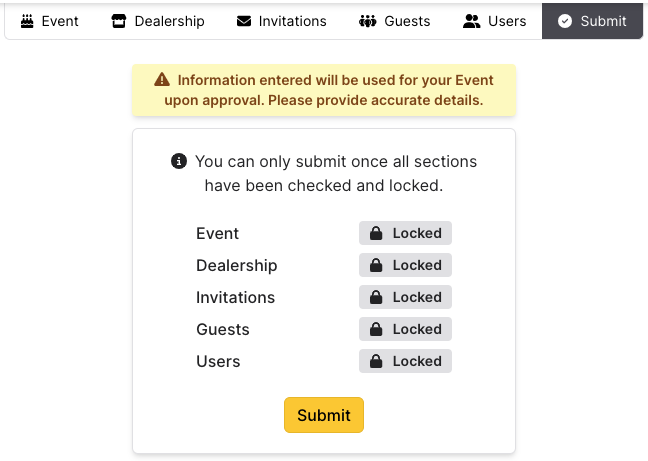
Once you are finished and all previous tabs have been locked, click the Submit button.
If you ever want to change any information you’ve provided, you can return to this page and click Request Edit. A member of our team will be alerted and we will promptly put your event back into an editable status.
Was this article helpful?
That’s Great!
Thank you for your feedback
Sorry! We couldn't be helpful
Thank you for your feedback
Feedback sent
We appreciate your effort and will try to fix the article