Introduction
This guide will walk you through the process of using the Prospecting Tool on HALO to manage and follow up with your allocated prospects for upcoming events.
Types of Prospects
There are different types of prospects you may encounter.
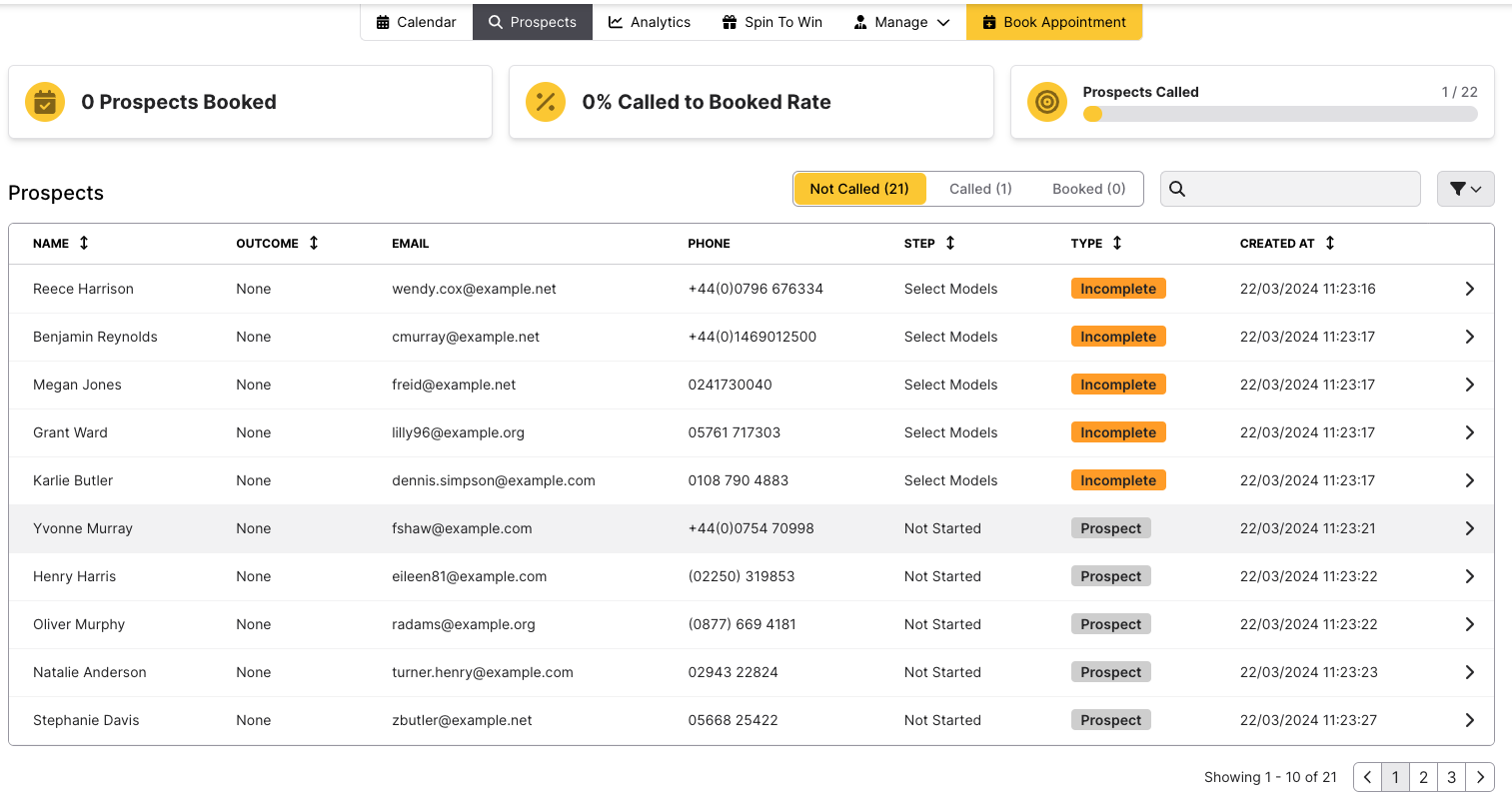
Prospects refer to guests who have been invited to the event. These guests are largely provided by yourselves, although some will come from social media links or other communications. They are split into 3 categories.
- Incomplete: These are prospects who began the booking process but did not complete it. They are considered high-priority leads and should be contacted immediately.
- Prospects: These are pre-uploaded contacts from your database who have received event marketing materials. Your task is to call them, invite them to the event, and confirm their participation.
- Enquiries: If this add-on module is activated, any enquiries sent through will appear here.
Viewing Prospect Information
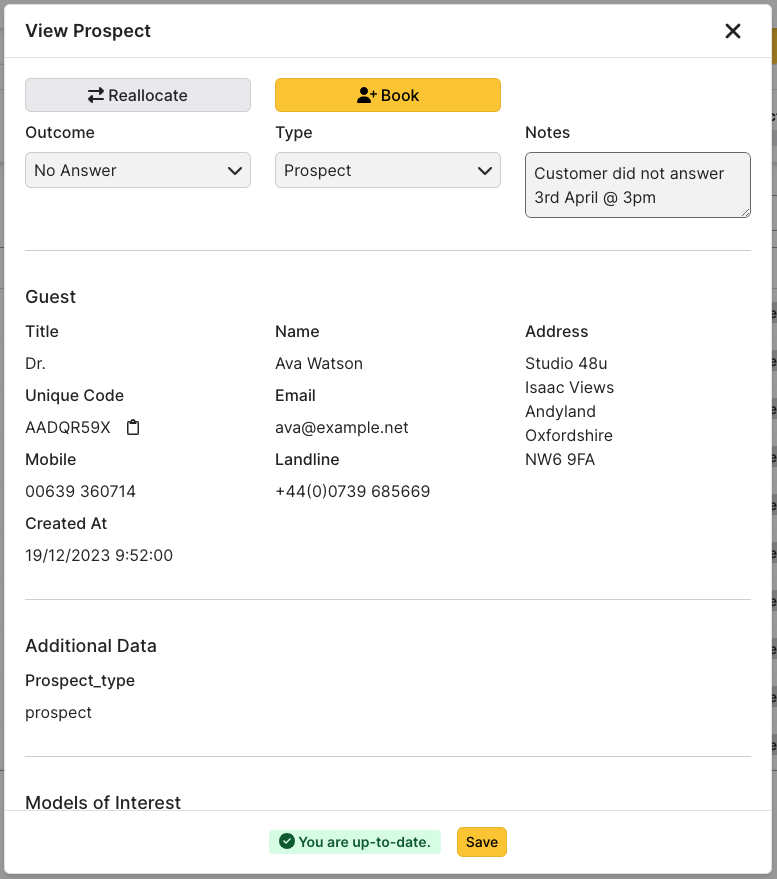
For Incomplete Bookings, you can see the specific step where the customer stopped the booking process, along with their email and phone number. Clicking on a record provides additional details about the customer, including selected models and addresses.
Sales executives can add notes, and update the status of each prospect.
Additionally, Managers can reallocate prospects to another salesperson.
After clicking on a prospect to see their contact information, you can book an appointment from the same window.
To book a prospect, update their status, set the date and time for their appointment, and confirm the booking.
If you've contacted the customer, you can assign a specific outcome to their record. Once an outcome has been selected, the prospect will move to the Called or Booked tab accordingly
- Booked occurs automatically after you have booked an appointment for the guest.
- Not Interested represents a guest who is not interested in the event.
- Follow Up represents a guest who require a follow-up call. Leaving a note is especially recommended here.
- Not Answered represents a guest who have not answered.
Some events are set up in a way to allow you to transfer prospects to a Sales Executive at a different dealership.
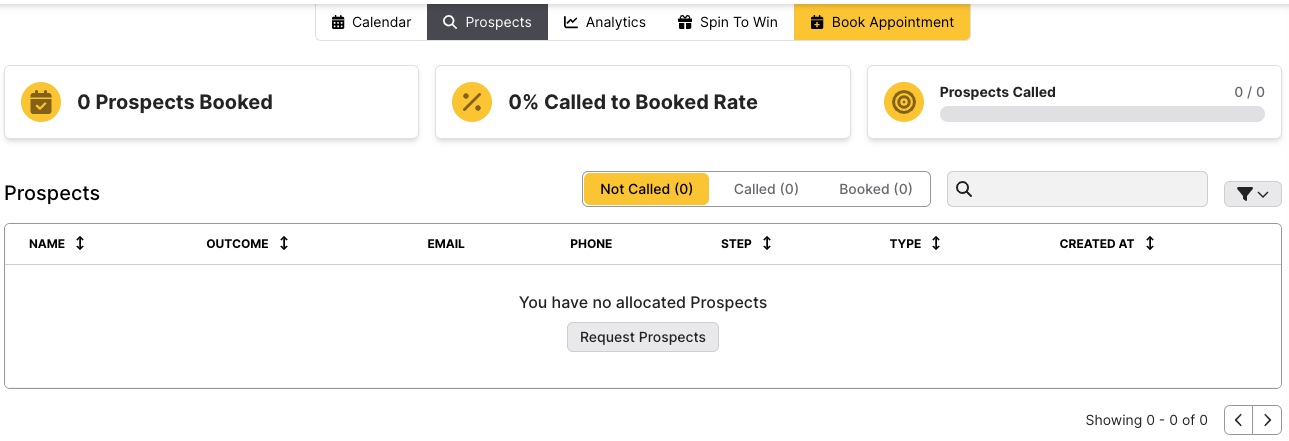 If you do not have any prospects, you can request them from this same page. Clicking the Request Prospects button will send an email to your manager(s) informing them that you would like some prospects allocated to yourself.
By following these steps, you can efficiently manage and convert your prospects, ensuring successful engagement for your upcoming events.
Was this article helpful?
That’s Great!
Thank you for your feedback
Sorry! We couldn't be helpful
Thank you for your feedback
Feedback sent
We appreciate your effort and will try to fix the article