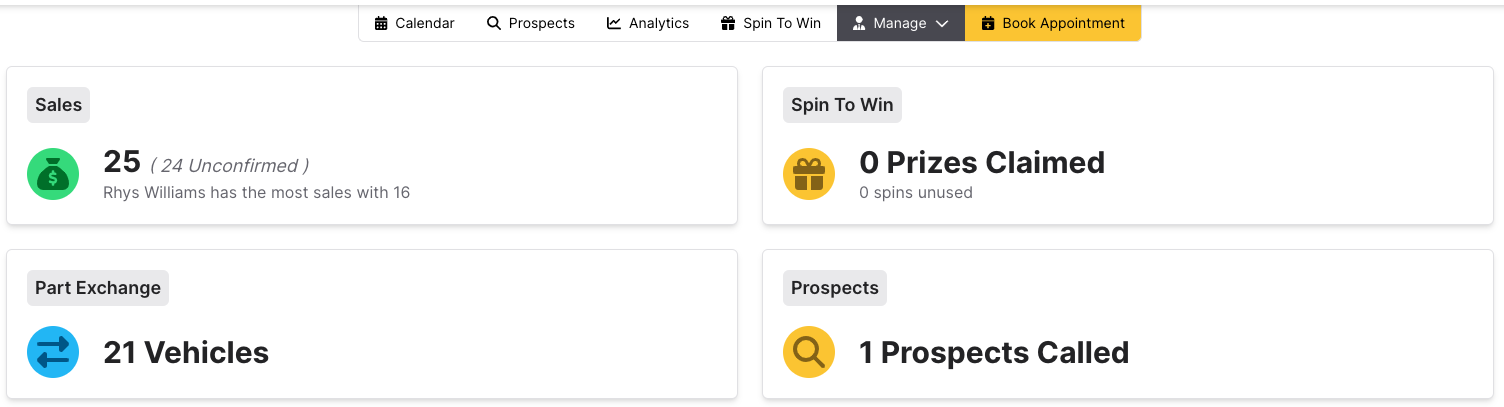
The manage tab gives a summary of Total Sales, Spin To Win, Part Exchange, and Prospects. Spin To Win will only appear if your event has the Spin To Win add-on. There will always be a prospects tab, although unless you have the prospects add-on it will be more limited.
- Clicking on Sales shows all sales for each Sales Executive and allows you to confirm each sale. After confirming a sale, you can give 1 or more spins to that Sales Executive if you have the add-on.
- Clicking on Spin To Win shows all possible prizes and quantities remaining, and also shows all spins already made and the prizes won.
- Clicking on Part Exchange shows the guests who are interested in exchanging their vehicle and vehicle information.
- Clicking on Prospects shows you all allocated and unallocated prospects.
You can access any of these pages more quickly by hovering over Manage and selecting them from the drop-down menu.
Sales
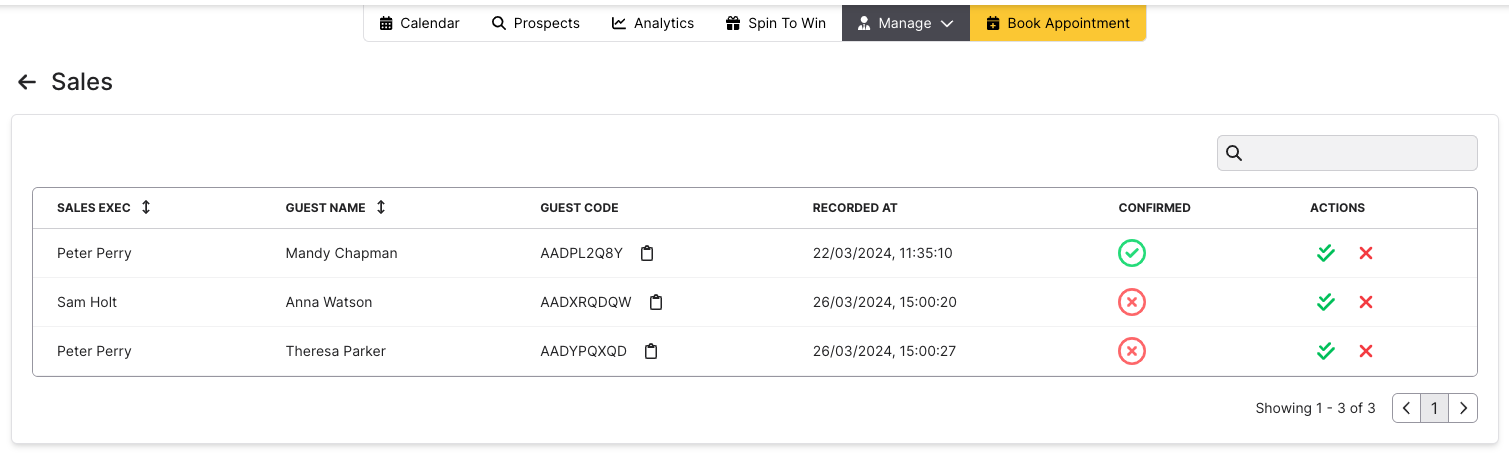
Sales is where you see all sales across the event. You can search by Sales Executive, Guest Name or Guest code using the search box to the upper right.
To confirm a sale, use the green tickbox on the right. If you have the Spin to Win add-on for your event, you can then give the Sales Exec 1 or more spins.
Spin To Win
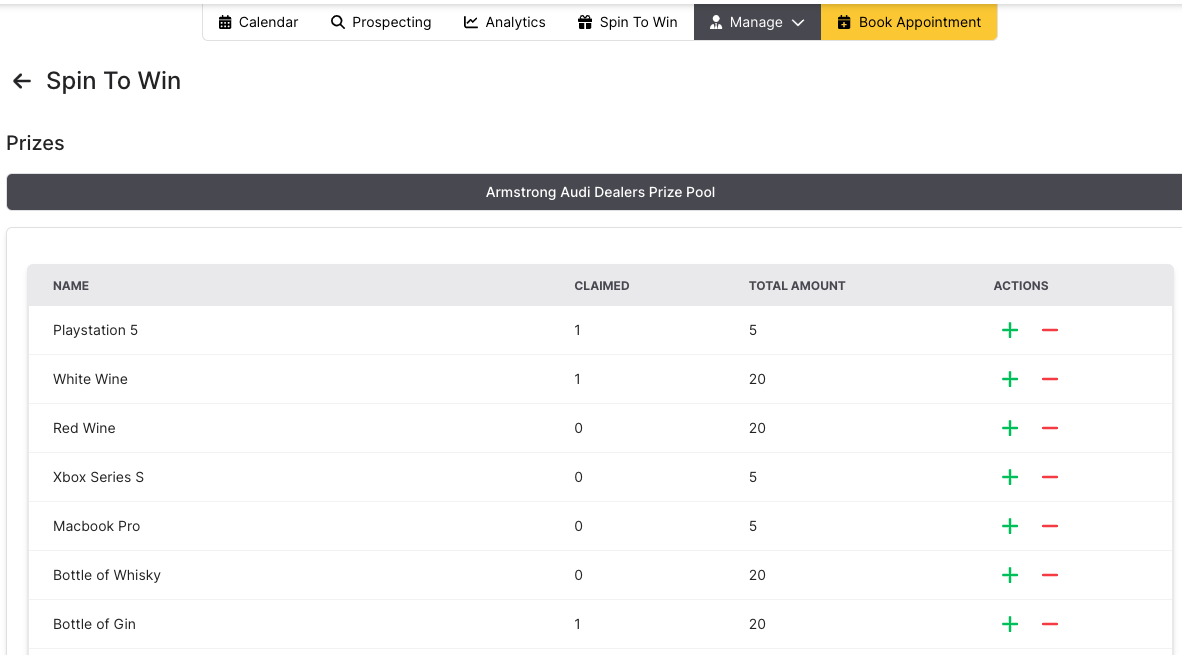 Here you can view all prizes alongside the remaining amount and how many have been claimed. You can also increase or decrease the total amount of prizes remaining by clicking + and - on the right.
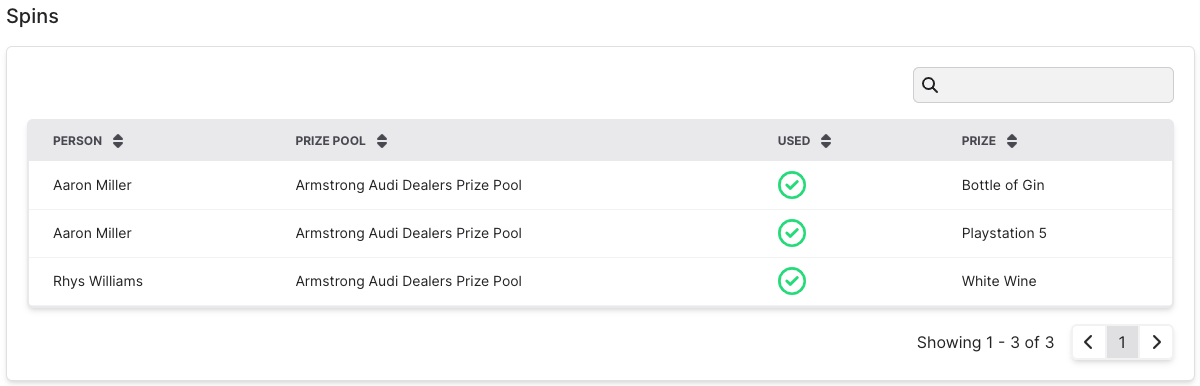
Scroll further down to see all prizes won by your workforce. This will also show you any unused spins.
Part Exchange
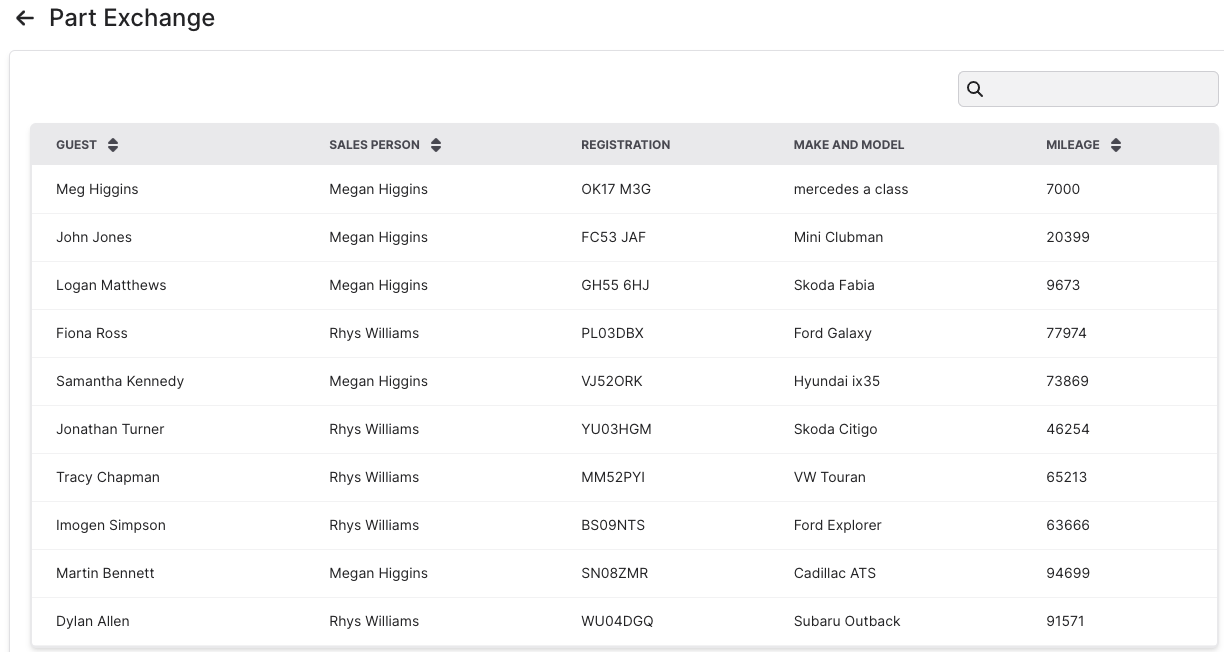
Here you can see a guest's registration, make, model and mileage of the car they want to exchange. This will also be in the guest's booking, but here you can see all parts exchanges at once.
Prospects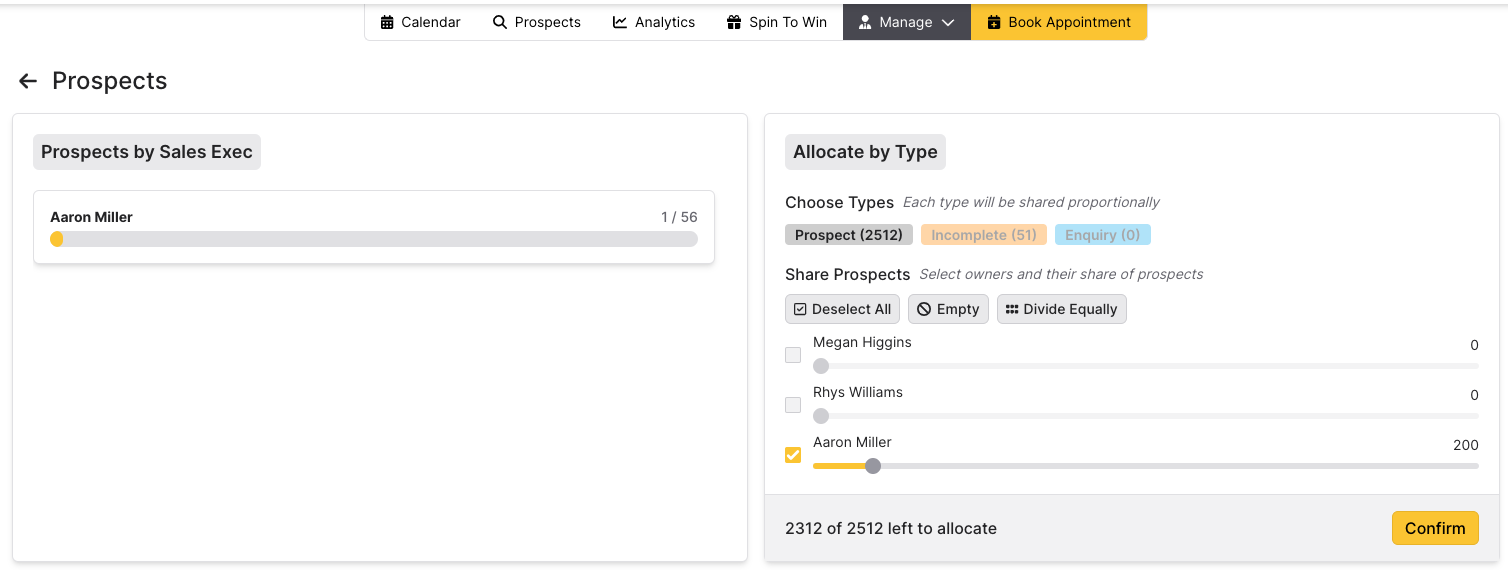
Here you can allocate prospects to each sales executive. You can allocate these prospects based on type. Prospects will automatically have their type updated to Incomplete if the guest has began booking an appointment but stopped before finishing.
- Please note that prospects with a priority of Incomplete cannot have their type updated. This is because potential guests who have began making a booking are much more likely to go to the event, and you don't want to lose this information.
The top section allows you to allocate all prospects in bulk. To do this:
- Select one or more prospect types at the upper right. Click the tick box to the left of your Sales Executives to select them. You can then use the slider to allocate a percentage of those prospects to them.
- You can also click Divide Equally to give an equal number of prospects to every Sales Executive you have selected. Click Confirm when you are done.
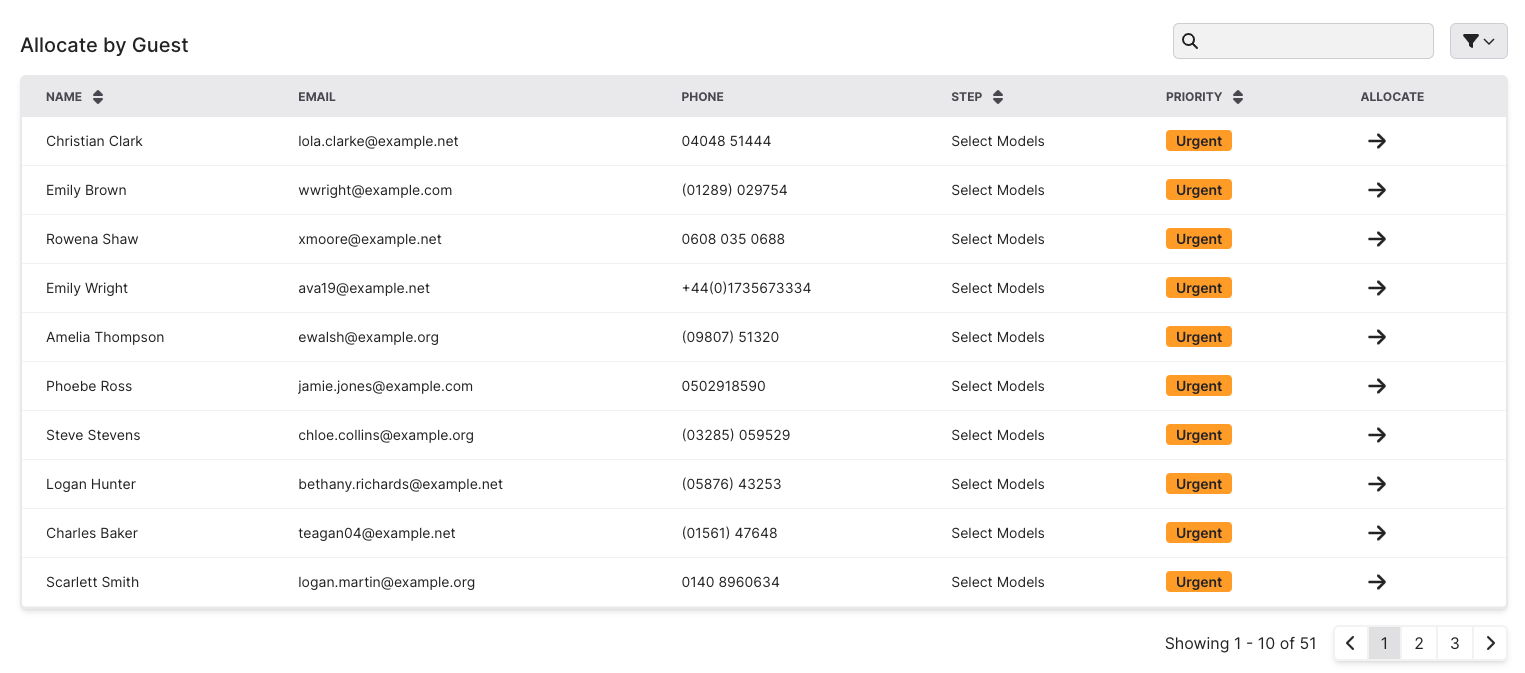
You can also allocate by guest. Scroll down to see a table of all guests and use the arrow on the right to allocate them to a particular Sales Executive. Scroll further to see all assigned prospects.

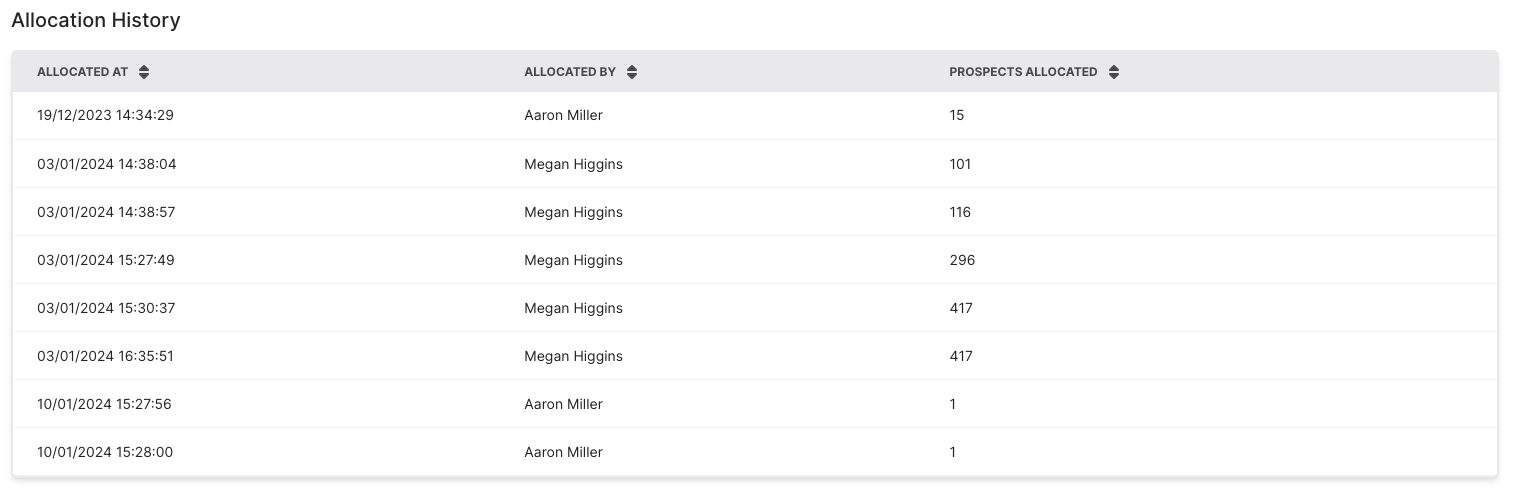
Scrolling to the very bottom will show you all previously allocated prospects, including who allocated the prospect and the number allocated.
Was this article helpful?
That’s Great!
Thank you for your feedback
Sorry! We couldn't be helpful
Thank you for your feedback
Feedback sent
We appreciate your effort and will try to fix the article